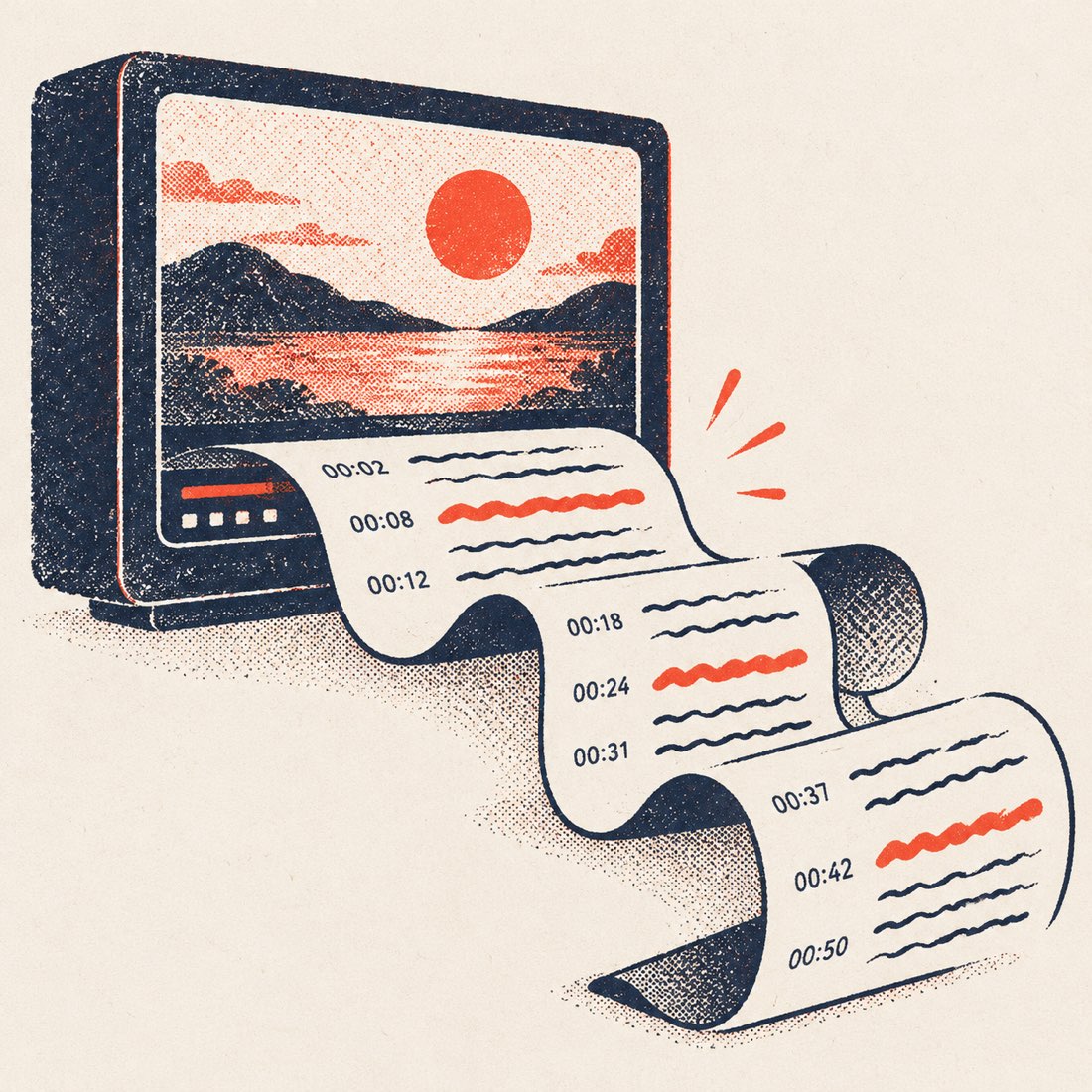
To get a YouTube transcript with timestamps, paste the link above and press Get transcript. Every line shows the time it is spoken; click it and the player jumps there. Keep timestamps in the TXT or Word download, or switch them off for clean paragraphs. Free, with no sign-up.
How the timestamps work
- Each paragraph starts with the time its first word is spoken, in mm:ss or h:mm:ss.
- Click a time or a sentence and the YouTube player beside the text seeks there.
- While the video plays, the current line is highlighted and the text scrolls with it.
- Search for a word to see every place it is said, with the time next to each match.
Timestamps in each download
| Format | Timestamps |
|---|---|
| TXT | Your choice — [04:19] before each paragraph, or none |
| DOCX | Your choice, same as TXT |
| SRT / VTT | Always — start and end time for every caption |
Chapters with timestamps
Need chapters for a video description? Open the Summary tab: the AI writes titled chapters with start times in YouTube's 00:00 format, ready to paste. 3 summaries a day are free.
Frequently asked questions
Can I copy the transcript with timestamps?
Yes. Copy all keeps the timestamps when they are switched on, and drops them when they are off.
Are the timestamps accurate?
They come from YouTube's own caption timing, so they match the video to within a fraction of a second.
Can I link to a moment in the video?
Yes — click a line to seek there; the YouTube player shows the time to share.